

Highlights
AI can write code in seconds, but great software still depends on sound software engineering decisions. The most successful teams use AI to accelerate development without compromising architecture, security, testing, or maintainability. Rather than treating AI as a replacement for developers, they use it as a force multiplier, combining automation with human judgment. The real opportunity isn’t plainly writing code faster. It’s building a brighter, more resilient engineering system that delivers better outcomes at scale.
It’s Friday afternoon, and the BI team has just finished the sales dashboard the leadership team has been waiting for.
The numbers are in. The visuals are polished. The filters work. Everyone agrees that it is ready.
Then comes the question:
“Can we publish it to everyone before Monday?”
Technically, yes. The developer could push the report straight to the Power BI Service and call it a day.
But there is a catch.
The dashboard has not been tested with production-scale data. One of its data sources is different in Production. And three people have made changes to the report over the past two days.
Publishing it now could turn a small mistake into a problem for hundreds of business users.
A better approach is to move the dashboard through a controlled Power BI development lifecycle: build it in Development, validate it in Test, and release it to Production only when it is ready.
This is where Power BI Deployment Pipelines come in.
Power BI is a data visualization and Business Intelligence platform used to create reports, dashboards, and insights from organizational data. Power BI Deployment Pipelines provide a structured way to manage this lifecycle. With Microsoft Fabric, the process can also connect with Git integration, source control, automation, and CI/CD workflows.
For the BI team, the Monday deadline is about getting the dashboard out without breaking what already works.
That starts with understanding the three stages of Power BI development.
Prerequisites for Power BI Deployment Pipelines
Before setting up a Power BI deployment pipeline, ensure that you have:
- Licensing and capacity: Deployment Pipeline availability depends on your Power BI/Fabric licensing, capacity, workspace type, and tenant settings.
- Fabric capacity: Microsoft Fabric introduces additional capacity options beyond the traditional Power BI Premium model. Validate the current licensing requirements against your organization’s Power BI and Fabric configuration.
- Workspace permissions: You need the appropriate workspace permissions, typically Workspace Admin privileges, to configure deployment pipelines and Git integration.
- CI/CD permissions: Exact permission requirements may vary depending on the CI/CD approach and tools being used.
What are the three Power BI deployment pipeline stages?
A Power BI Deployment Pipeline consists of three stages: Development, Test, and Production. Organizations may implement additional environments such as QA, UAT, staging, or sandbox depending on their governance and release requirements.
- Development
In this stage, you can design, build, and share Power BI reports and their content.
- Test
In this stage, you can upload the modified report content so it can be moved to the test stage. You can follow these steps in the test environment:
- Share content with testers and reviewers
- Load and run tests with larger volumes of data
- Test your app to see how it will look for your end users
- Production
After testing the report content, you can use the production stage to share the final report content with the business users across the organization.
This three-stage model remains the foundation of the Power BI development lifecycle. However, the way teams manage changes around those stages has evolved significantly with Microsoft Fabric.
How does Microsoft Fabric change Power BI deployment?
Microsoft Fabric brings Power BI into a broader analytics platform covering data engineering, data science, Data Factory, real-time analytics, and Business Intelligence. Its CI/CD capabilities combine Git integration, deployment pipelines, configuration management, and automation.
Power BI deployment can therefore connect the development process with source control and automated delivery.
What are the different Power BI CI/CD architecture patterns?
There is no single deployment sequence that fits every Power BI or Microsoft Fabric implementation. Organizations can choose different architectures depending on whether deployment pipelines, Git, or a combination of both serves as the primary mechanism for managing releases.
Pattern A: Fabric Deployment Pipeline
In this model, the deployment pipeline is the primary mechanism for promoting content between environments.

Git can also be connected to the Development workspace to provide source control and collaboration.
Pattern B: Git-Centric CI/CD
In this model, Git becomes the primary source of truth for Power BI project content.

This approach brings Power BI development closer to software engineering workflows, with changes committed, reviewed, validated, and promoted across environments
Pattern C: Hybrid CI/CD
For many enterprise implementations, a hybrid approach can combine the strengths of Git-based development with Fabric Deployment Pipelines.

In this model, Git provides version control, branching, collaboration, and validation, while Fabric Deployment Pipelines manage controlled promotion across environments.

Explore how a global retailer reimagined UX with Power BI Embedded Analytics in 12 weeks.
How do you get started with Power BI deployment pipelines?
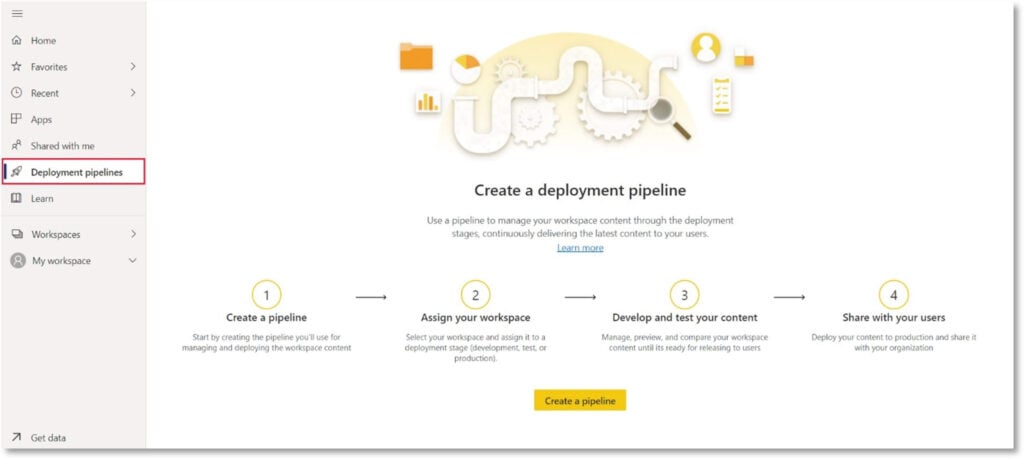
Follow these steps to get started with deployment pipelines-
- Go to the navigation panel on the left side, then select ‘Deployment pipeline’ and click on’’ Create pipeline’.
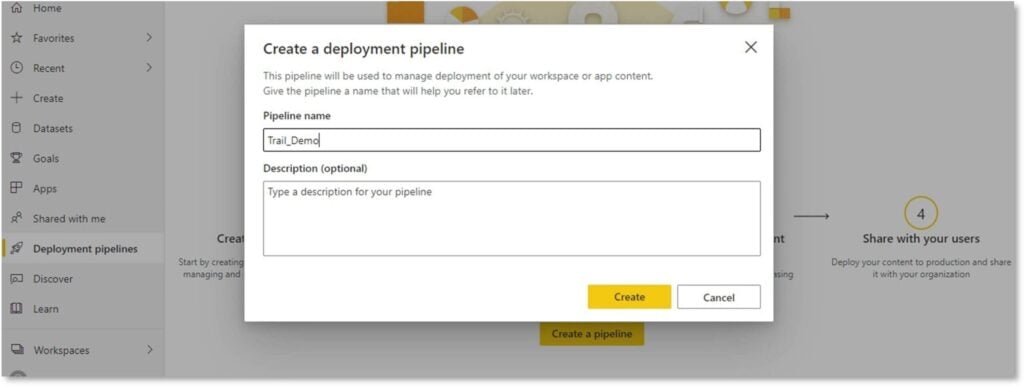
- A pop-up will appear. Enter the pipeline name and description (Optional)
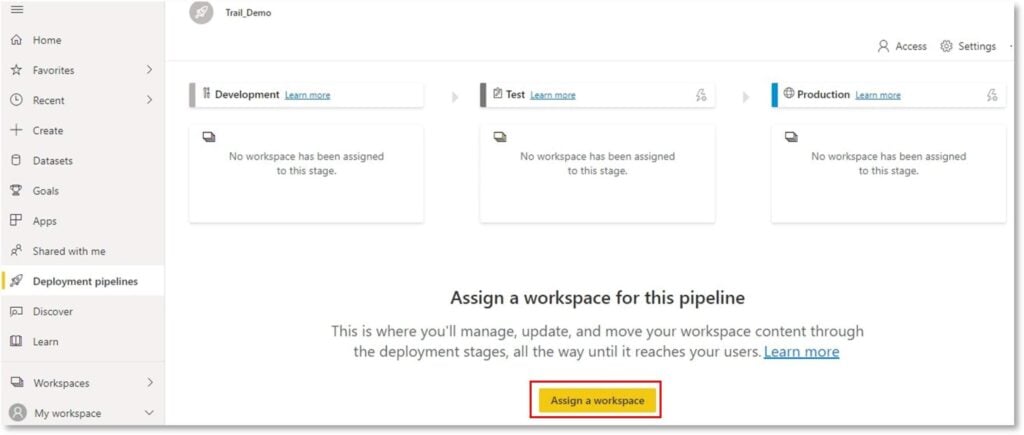
- Assign a workspace to the deployment pipeline. As you have now created a pipeline, you need to add Power BI report content to the pipeline, which can be done by assigning a workspace to the pipeline stage.
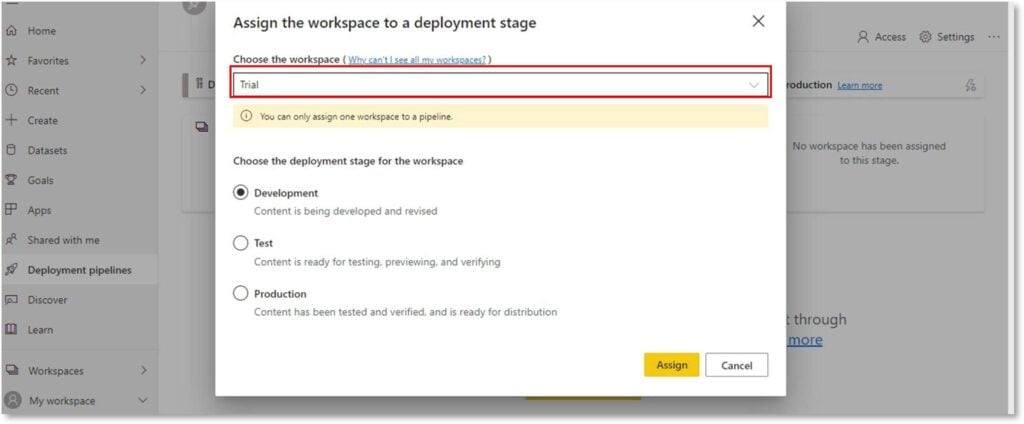
- Select the workspace from the drop-down menu that you want to assign to the pipeline. Then select the stage you want to assign to the workspace.
- In this stage, you can select items that you want to deploy to the next stage. Click on the ‘’Deploy’ button. The deployment process creates a duplicate workspace in the test or target stage.
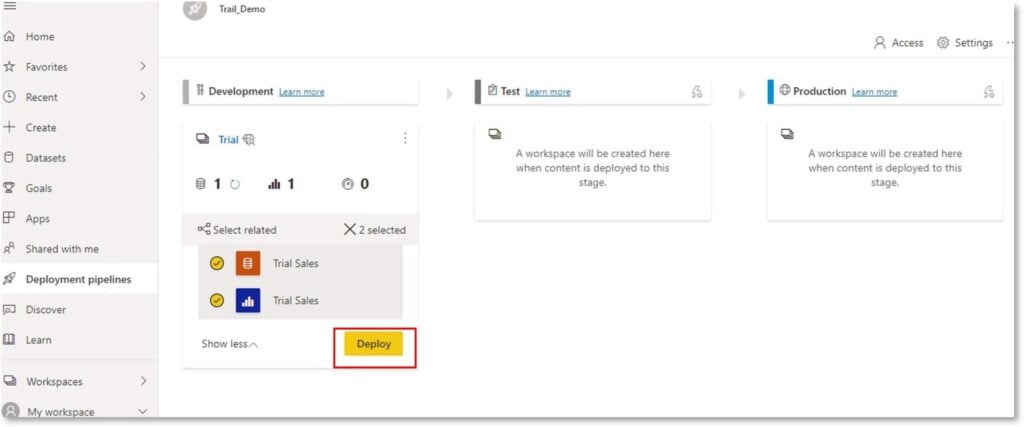
Note-
- To see the latest data, refresh the dataset after each deployment. During the deployment process, new features/updates copy the Power BI metadata from the selected stage into the target stage. It only copies the metadata and not the data within the datasets.
- You cannot deploy a report or a dashboard to the next stage if the items dependent on it do not exist in the stage you are deploying it to.
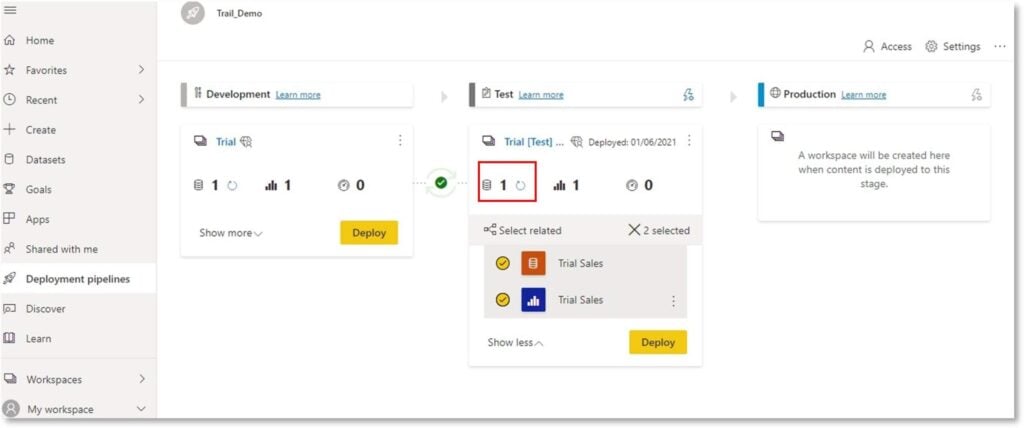
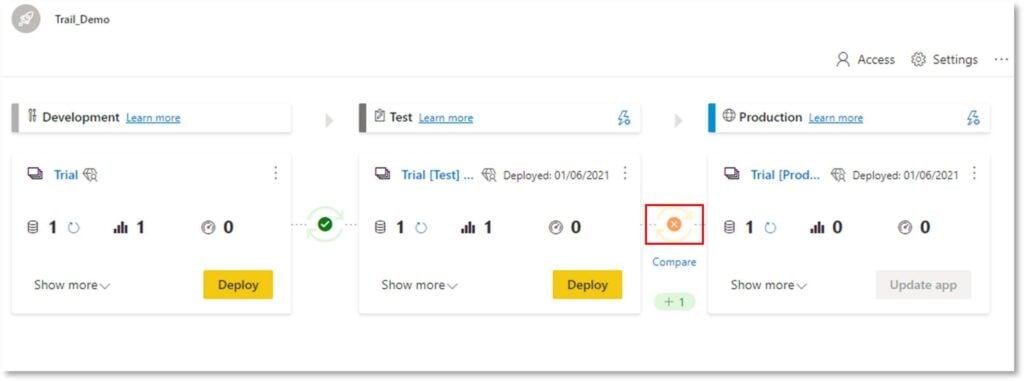
- The orange indicator means that the content between pipelinesdonot match and are not identical.
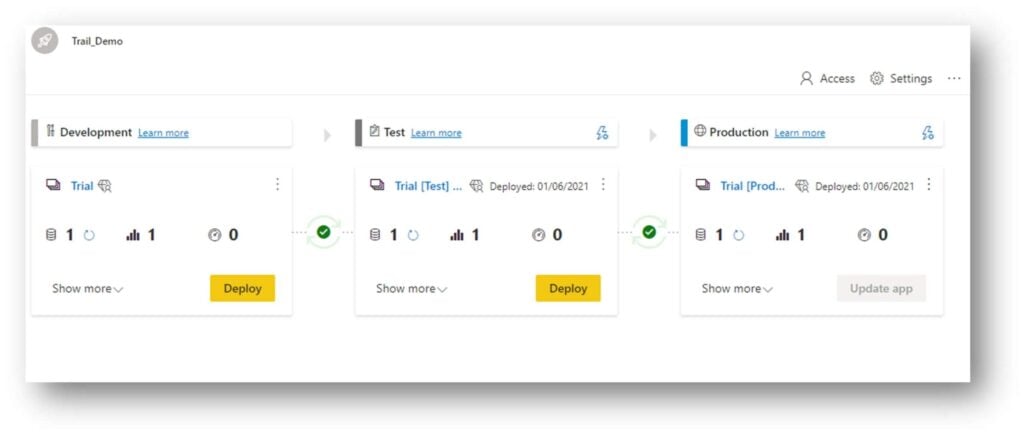
- The following image shows how you have deployed your reports/dashboards from development totestand test to production environment.
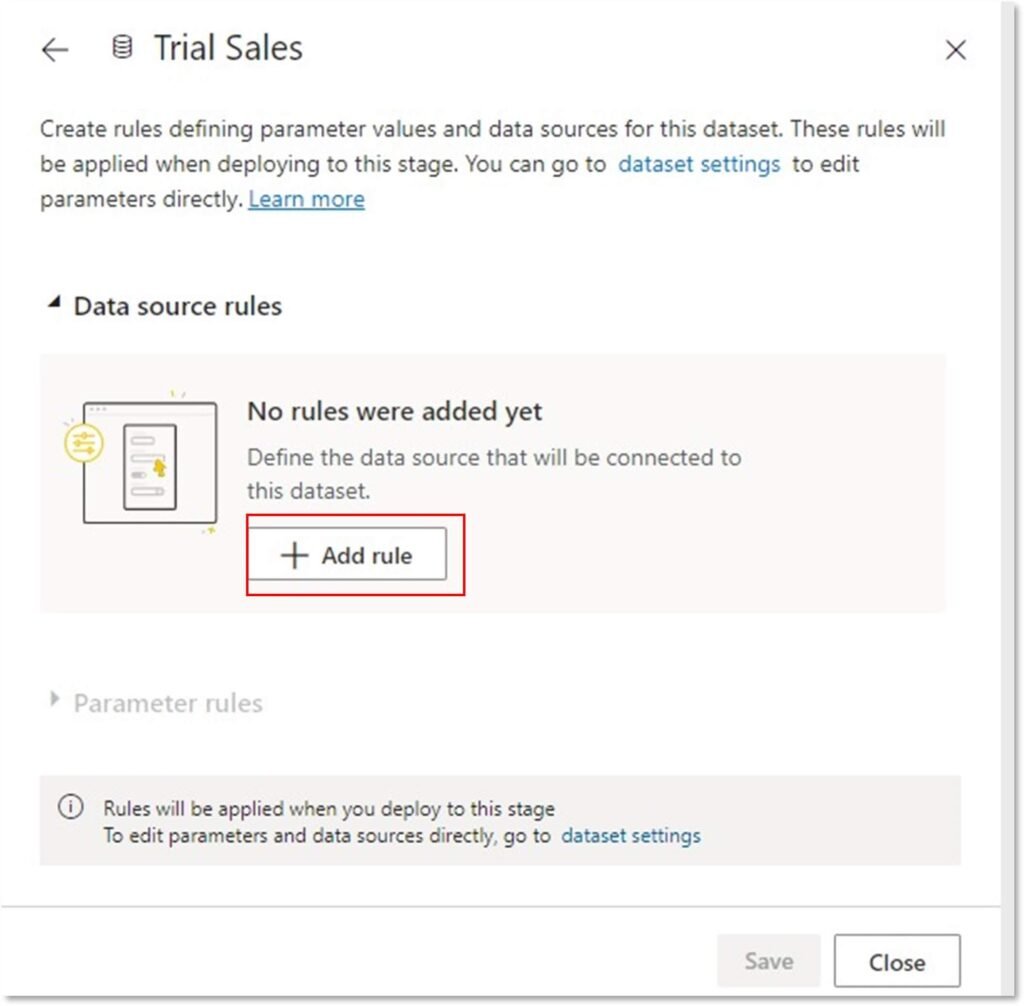
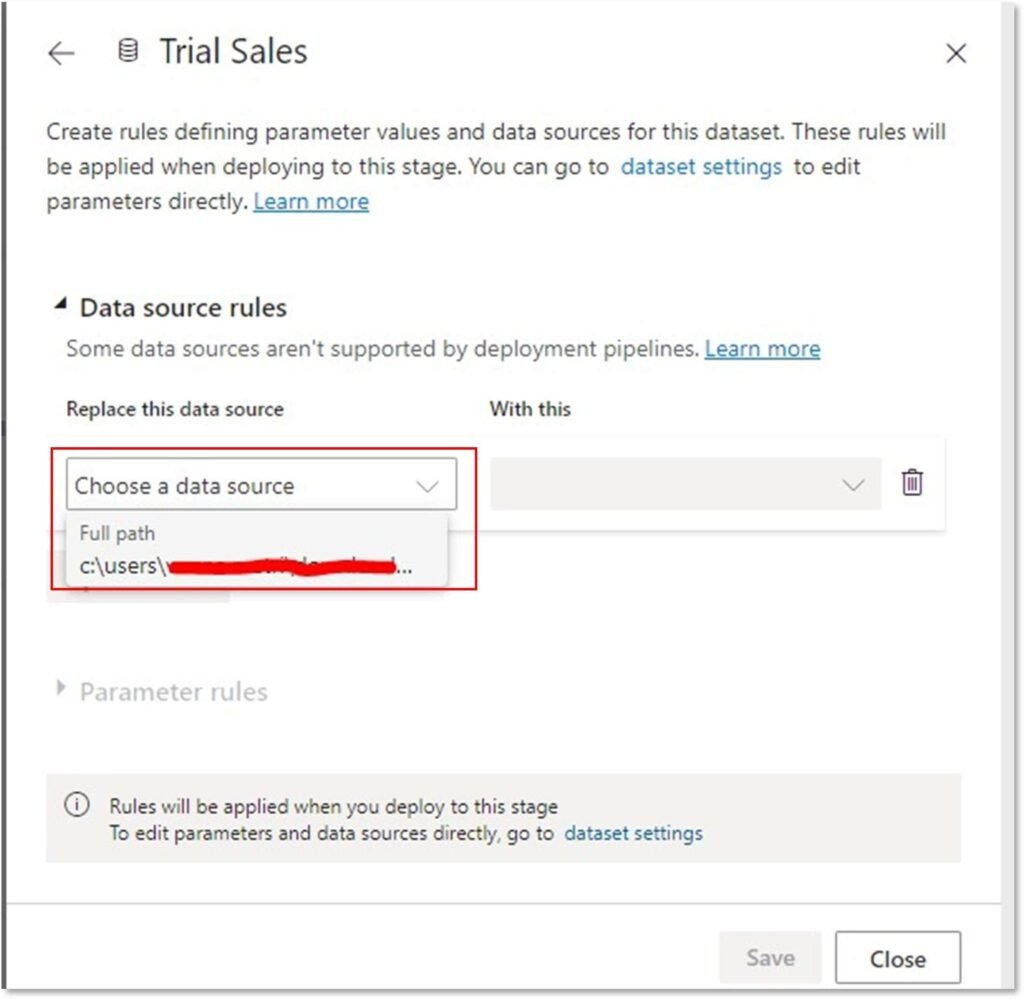
- Deployment Datasets Rules-Dataset rules allow you to configure the specific parameters and data sources in a dataset. While working on pipelines, you can have different stages that may have different configurations. Each stage can have different databases or different parameters. When you deploy report content between pipeline stages, dataset rules enable you to allow changes to the content, while keeping some settings intact.
-To create deployment dataset rules, select ‘Deployment settings’. Click on the ‘lightning bolt’ button.

- A pop-up will open, then select the dataset you want to create a rule for.
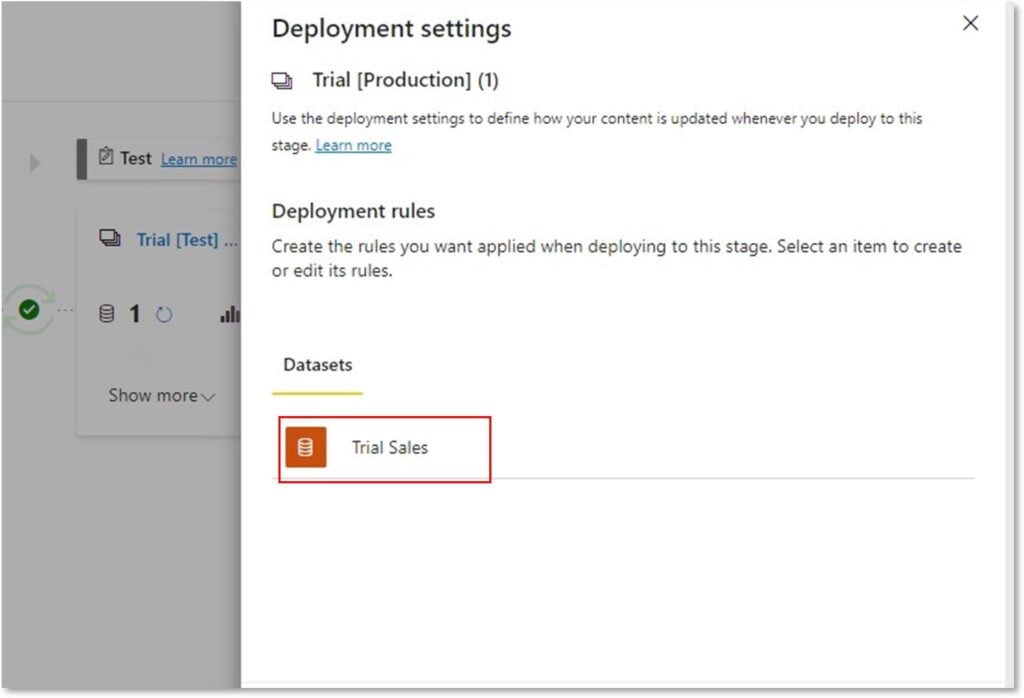
- Now expand the data source rules list, and then select ’Addrule’.
- Now from the data source list, select a data source to be replaced.
*There are some dataset rules that need to be considered-
- You cannot create deployment dataset rules in the development stage.
- You must be a dataset owner to create a deployment rule.
- If the data source defined in a rule is changed/removed from the source dataset, the rule will not be valid, and the deployment will fail.
- You cannot define parameter rules for any or binary type of parameters.
- You can define data source rules for the following data sources:
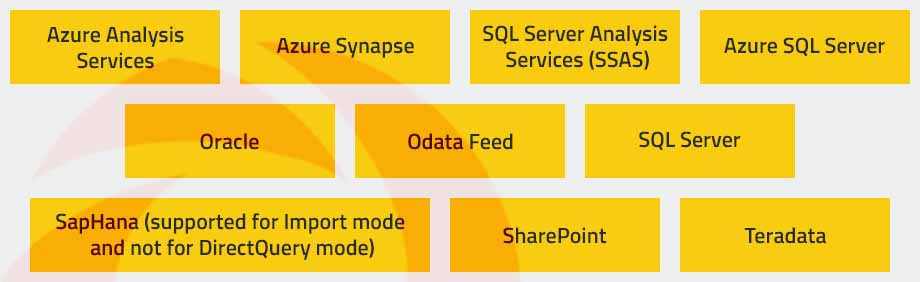
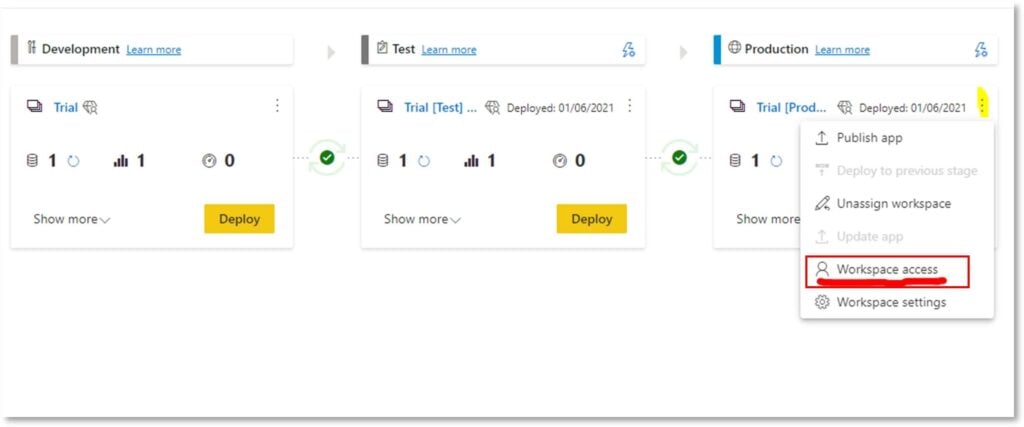
- Pipeline Permissions-Select the right corner ellipsis to give workspace access to certain users. You can give the following permissions to the users –
- View the pipeline
- Share the pipeline with others
- Edit and delete the pipeline
How does Git integration enable Power BI CI/CD?
Deployment pipelines control how content moves between environments. Git integration adds another important capability: version control.
Microsoft Fabric supports Git integration with providers such as Azure DevOps, GitHub, and GitHub Enterprise. Teams can use Git as a source of truth for supported Fabric workspace item definitions, allowing changes to be tracked, reviewed, compared, and reverted.

This is a major shift from a purely workspace-based Power BI development process.
Instead of relying only on the current state of a Power BI Workspace, teams can maintain a history of changes in source control.
Git integration can also support branch-based development. Developers can work on changes independently and submit them for review before those changes are merged into the main development branch.
Azure DevOps can provide the broader CI/CD workflow. Azure Pipelines can respond to commits or pull requests and execute automated validation and deployment processes.
For teams adopting Power BI DevOps, the distinction is useful:
- Git manages the source and history of changes.
- CI validates those changes.
- Deployment pipelines or automated release workflows move approved changes across environments.
Read more related blogs
1. Availing Real Time Updates In Power BI With Push Datasets
2. What is a Data Pipeline? Stages, Tools & Best Practices
3. Dockerize .NET Solutions and Deploy via Azure DevOps CI/CD
What is Power BI Project (PBIP) format and why does it matter?
Power BI Project, or PBIP, provides a project-based format for Power BI Desktop development.
Instead of treating a report primarily as a single packaged file, PBIP represents project content through files that can be stored in source control. This makes collaboration with Git and development tools more practical.
Microsoft documents the use of PBIP with Azure DevOps build pipelines for automated validation. Azure Pipelines can process PBIP metadata files and apply quality checks before deployment.
A PBIP-based workflow can therefore look like:
Power BI Desktop → PBIP → Azure DevOps Repository → Build/Validation → Deployment
This is particularly useful for teams where multiple developers contribute to the same analytics solution.
This is particularly useful when multiple developers contribute to the same analytics solution. Developers can work with project files locally, commit changes to Git, and synchronize them with the wider development workflow.
What are the best practices for Power BI deployment pipelines?
Deployment pipelines are most effective when they are treated as part of a broader release process rather than as a standalone deployment button.
- Separate environments clearly
Maintain distinct Development, Test, and Production workspaces.
Do not use Production as a development workspace.
- Use deployment rules carefully
Different environments may need different data sources, parameters, or configurations. Use deployment rules where appropriate instead of manually changing settings after every deployment.
- Introduce source control
Connect appropriate Fabric workspaces to Git so that changes can be versioned and reviewed.
- Use approvals before Production
Production deployments should follow a defined approval process, particularly for reports that influence financial, operational, or customer-facing decisions.
- Automate validation
Where possible, use Azure DevOps or another supported CI/CD workflow to validate changes before they are deployed.
- Keep Production access limited
Development and Test environments can support broader collaboration. Production access should be limited to the users who need it.
How should Power BI deployment be governed and secured?
Power BI and Fabric deployment are not only technical processes. They are also a governance process.
Pipeline permissions allow administrators to control who can view, share, edit, and delete the pipeline.
Workspace permissions should complement these controls.
A practical governance model is:
- Development: broader developer access.
- Test: controlled access for developers, QA teams, and reviewers.
- Production: restricted access for approved administrators and business users.
Environment isolation reduces the possibility that development activity will unintentionally affect production content or data. Governance should therefore be designed alongside the deployment architecture.
What are the uses of Power BI deployment pipelines?
Power BI deployment pipelines can help teams:
- Create and share multiple deployment pipelines.
- Deploy content across Development, Test, and Production.
- Approve or deny changes before deployment.
- Configure parameter and data source rules for different environments.
- Limit Production access while allowing broader collaboration elsewhere.
- Combine deployment pipelines with Git and Azure DevOps for a more complete CI/CD process.
- Track changes to supported Power BI and Fabric content through source control.
For further automation, Microsoft Fabric also provides REST APIs that can integrate deployment pipelines with tools such as Azure DevOps and GitHub Actions.
Why does a modern Power BI development lifecycle matter?
Power BI has evolved from a primarily report-focused development experience into a broader analytics development environment.
The three-stage model remains important:
Development → Test → Production
But modern Power BI development can now combine
Power BI Desktop + PBIP + Git + Azure DevOps + Fabric + Deployment Pipelines + Governance
Each component addresses a different part of the lifecycle.
Git provides version control.
PBIP provides a project-oriented development format.
Azure DevOps supports CI/CD and automated validation.
Fabric provides the broader analytics platform.
Deployment pipelines provide controlled promotion between environments.
Governance and security provide the controls needed to protect the resulting analytics environment.
Key Takeaways
- Power BI Deployment Pipelines provide a controlled Development, Test, and Production lifecycle.
- Microsoft Fabric extends this lifecycle with Git, CI/CD, automation, and broader analytics capabilities.
- PBIP and Azure DevOps support source control, collaboration, and automated validation.
- Deployment rules help maintain environment-specific configurations.
- Governance, permissions, and environment separation help make Power BI CI/CD safer and more repeatable.
- By Monday morning, the BI team has a dashboard ready for the leadership meeting.
The real achievement is not simply that the report reached Production. It got there through a process that allowed the team to build, review, test, validate, govern, and deploy changes without putting the live environment at risk.
Power BI Deployment Pipelines provide the foundation. Microsoft Fabric, Git, PBIP, Azure DevOps, CI/CD automation, deployment rules, and governance extend that foundation into a structured development and release process.
The goal is not simply to deploy reports faster, but to make changes easier to review, test, govern, and release.
To modernize data and analytics environments, implement cloud and DevOps practices, and build scalable Business Intelligence solutions, Contact us at Nitor Infotech to discuss how you can modernize your Power BI development and deployment process.